Translating custom fields and groups
You can translate existing custom fields and custom groups. After a field has been added, the interface lets you add translations. By default, it normally copies the original labels and values from the default language to the additional languages.
Translating a custom field
Note: This process assumes you have already set up a multilingual system.
- Go to Administrator > Customize Data and Screens > Custom Fields.
- Edit the
Custom Groupyou want to translate. - For each custom field, click the
Edit Fieldlink. -
Click the corresponding translate button.
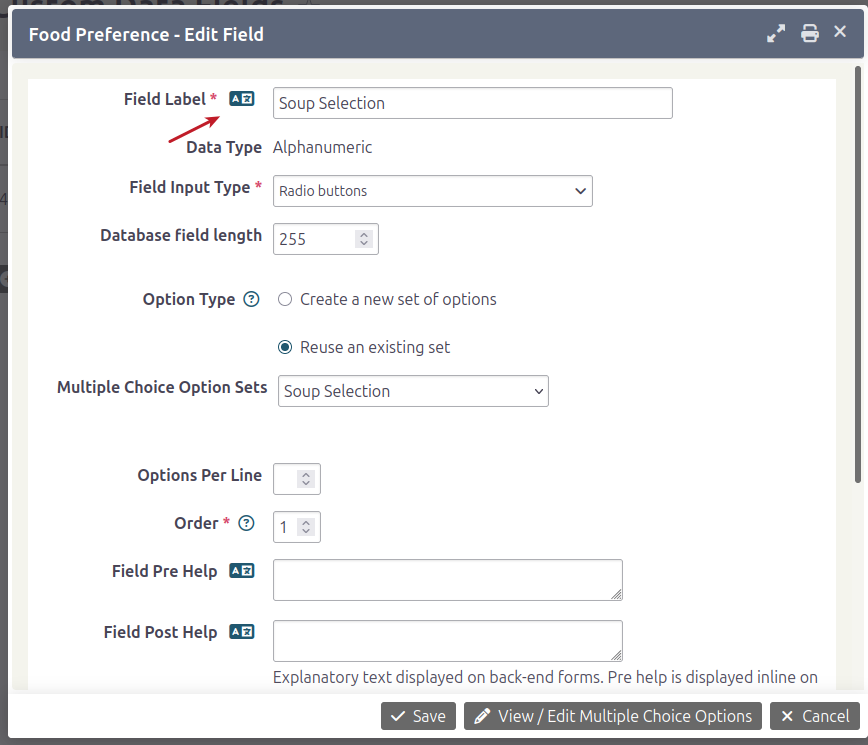
-
In the popup, translate the label or value.
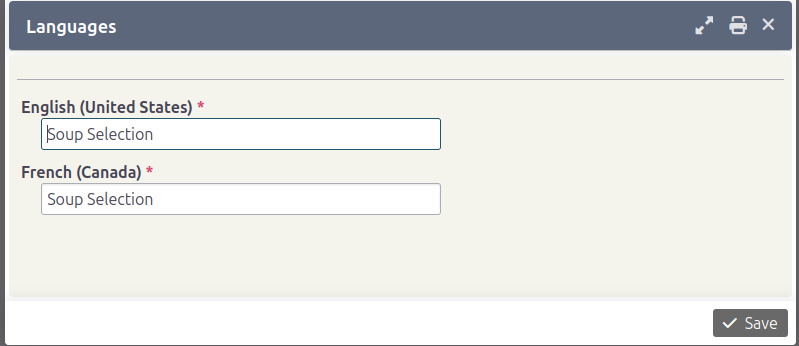
-
Click Save.
- Repeat the process for the other translation options and additional fields.
- View the group in another language to see the fields with your translations.
Translating a custom group
Follow the same process as for Custom fields, but click the Settings link for the Custom Group. You can translate any fields that have the same language button.