Create an invitation list for donor members
This example builds an invitation list for members who are major donors and have not previously attended an event.
Step 1: Select current members
On the SearchKit page, click New Search and choose a base entity in Search for. The base entity cannot be changed once the search has been saved.
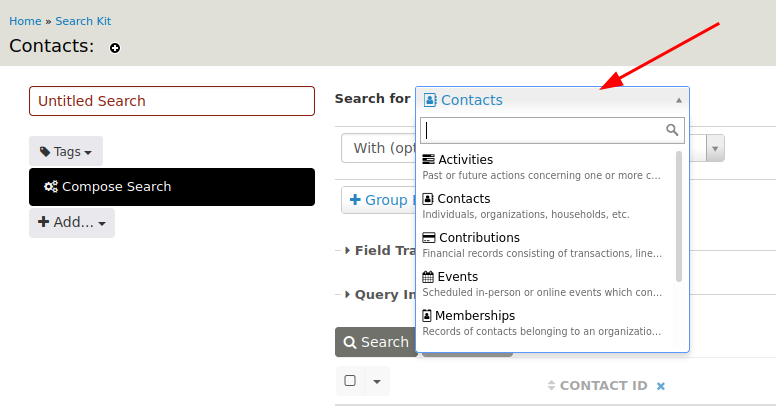
You could start with Contacts and link Memberships, or start with Memberships and link Contacts. Because the goal is a list of contacts, select Contacts from Search for. Change With (optional) to With (required), then select Memberships from +Entity.
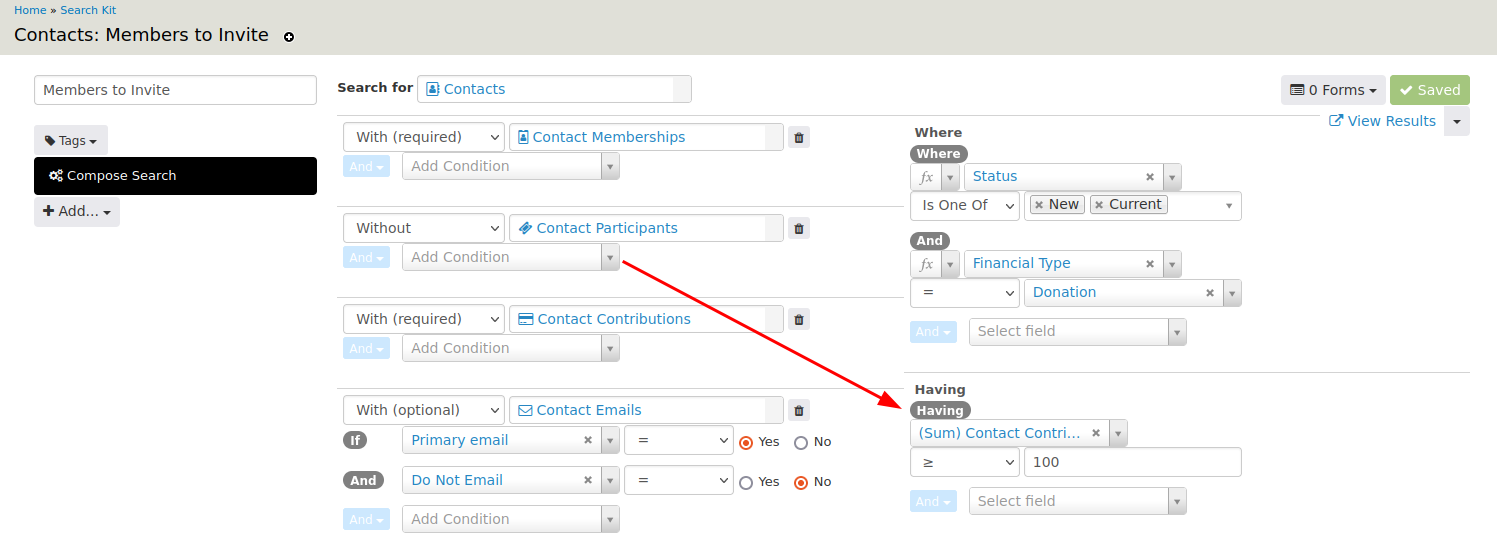
To include only active members, go to Where and change Status to is one of New and Current.

Enter a name for the search and click Save. You can click Search to preview the results.
Step 2: Find members with no event participant record
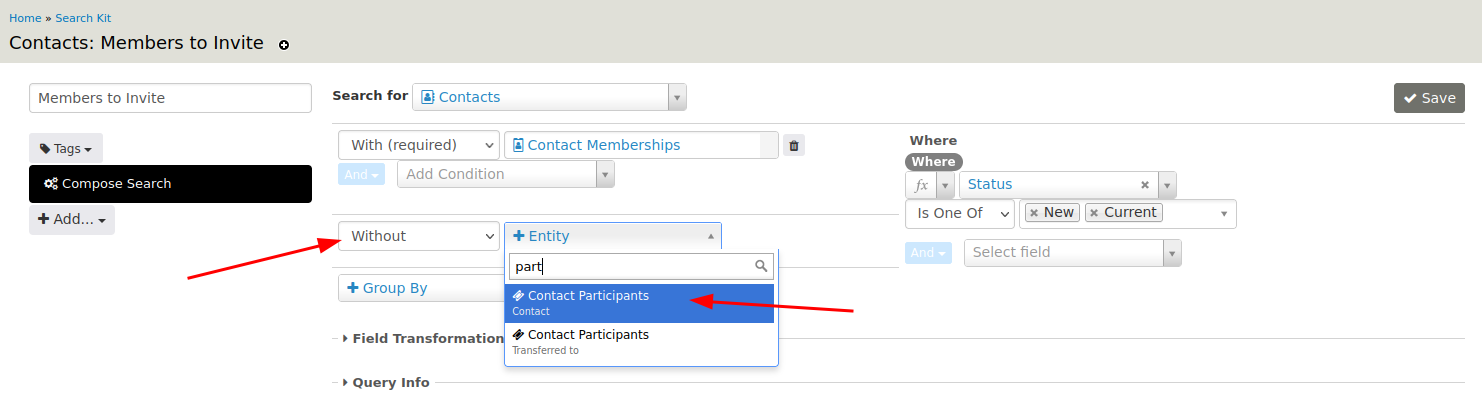
To find members who have never attended an event, look for contacts without a participant record. Change a second With (optional) field to Without and select Contact Participants.
Step 3: Add donors and sum their contributions
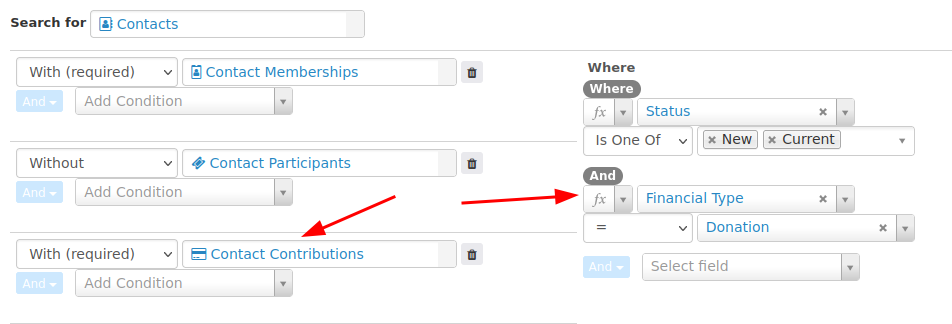
Change a third With (optional) to With (required) and select Contact Contributions. Under Where, add a clause that sets Financial Type = Donation.
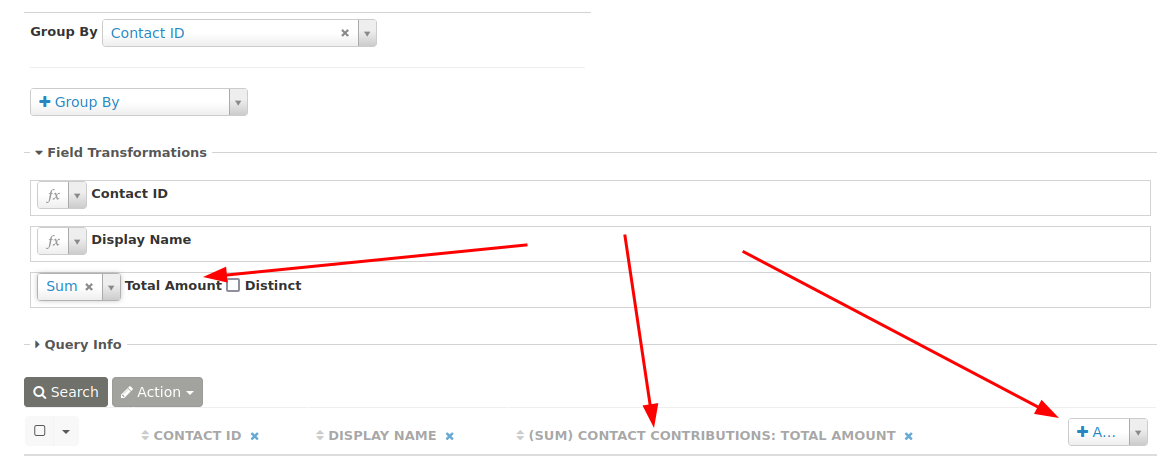
A contact may have multiple donations. To list each contact only once, select Contact ID from Group By.

Using Group By enables a Field Transformation, such as combine, count, or sum. To sum each contact's contributions, click +Add and select Total Amount to add it to the search results. Under Field Transformation above the results, select Sum from the drop-down menu next to the Total Amount field.
Step 4: Filter for major donors
To include donors who have contributed at least a specified amount, add a condition on the sum of the total amount. Because the condition uses a field transformation, use Having instead of Where. Set (Sum) Contact Contibution to greater than or equal to the specified amount.
Step 5: Add email and phone number
Add the contact's primary email and phone number as entities for the invitation list.
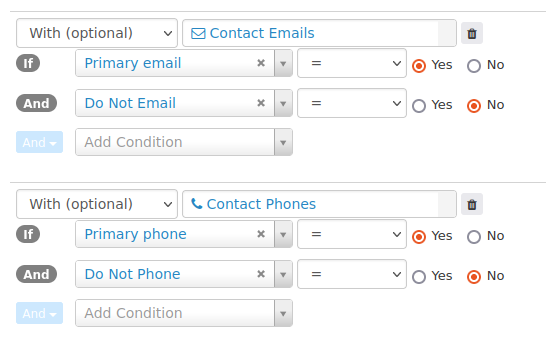
!!! Note: * Not every contact may have an email or phone number in the database, so With (optional) is recommended. * A contact may have specified that they do not want to be phoned or emailed. This is shown on their Contact Summary and needs to be taken into account.
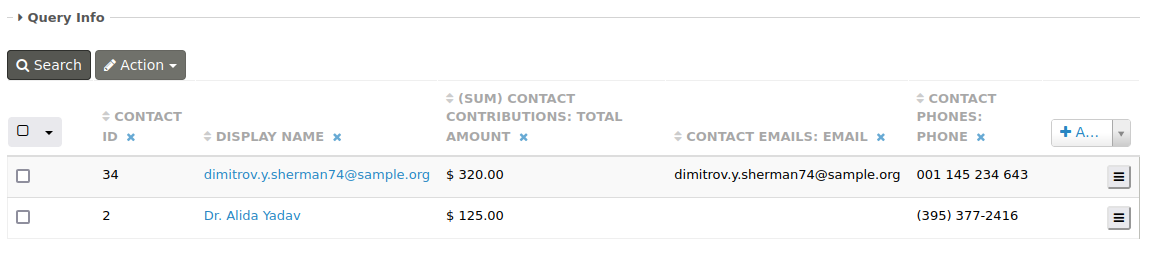
The configured search results will likely look something like this:
Step 6: Export as a CSV file
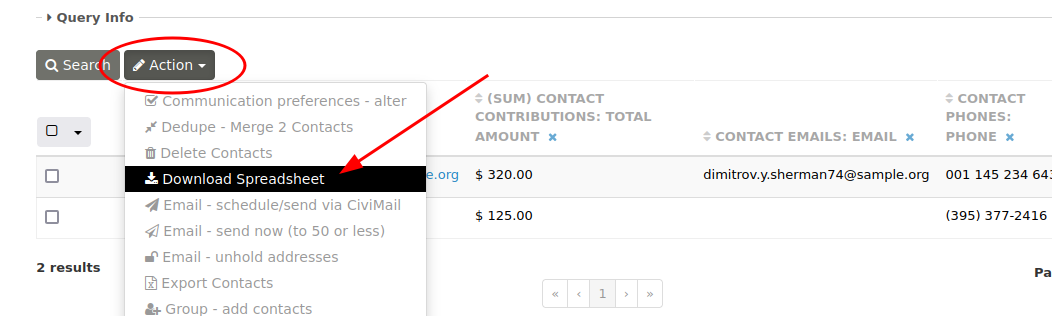
Click Actions above the search results to see available actions, including downloading the data as a spreadsheet (CSV file).