Create an address list for Surveys of type Walklist
Surveys let you print walk lists for volunteers or staff who conduct surveys while door-knocking.
Door-knocking canvass activities may be part of a larger campaign, so you may want to set up a Campaign if you haven't done so already.
Create your WalkList report
- Go to Reports > Create Templates from Reports > Survey Report (Detail).
- In the Display Columns area, check the boxes for Street Number, Street Name, Street Unit, Survey Responses.
- In the Group By Columns area, check the boxes for Street Name, Odd/Even Street Number.
- In the Set Filters area, select your survey name in Survey. For Respondent Status, select Is Equal to and Reserved from the dropdown menus.
- Click Preview Report, then Print Preview.
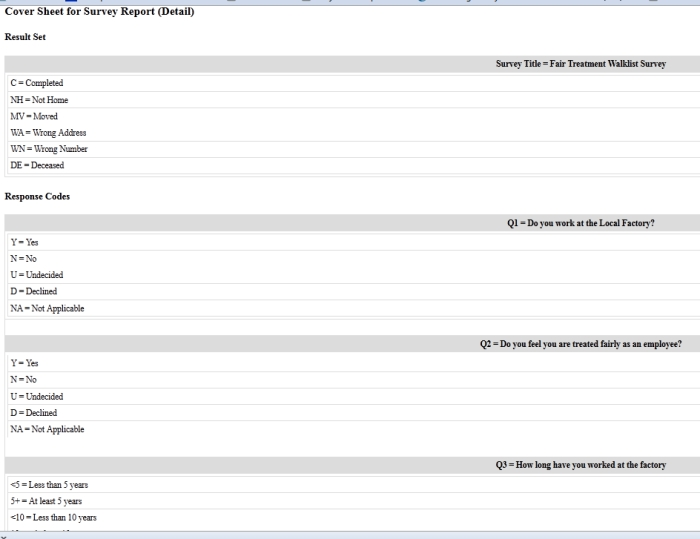
- Print your report. The printout includes a cover sheet with the survey questions (both label and value). The report is sorted by street name and odd and even street numbers. See Set up for more information.
Conduct your door-knock canvass
Your organisers and volunteers can now door-knock and collect responses on their WalkList report sheets.
Record responses from the canvass
At the end of each day or evening of canvassing, each organiser or volunteer can record responses directly into CiviCRM.
- Go to Campaigns > Interview Respondents.
- Enter the name of your survey and the name of the target group you surveyed during the canvass. You may also enter the street name if you want to work with a smaller group of contacts.
- On the Find Respondents to Interview screen, select the contacts for whom you want to record responses.
- Click Go.
- Enter the responses and results according to your WalkList sheet responses, then click Record Response.