Navigation menu
The navigation menu is a small bar at the top of every CiviCRM “back office” page. It groups major areas of functionality alongside search and administration.

The menu includes:
- Quick Search — Look up a name, email or other custom fields.
- Menu Search and Logout — Search the entire CiviCRM menu and log out.
- Search — Search your CRM data.
- Contacts — Find, add and manage contacts.
- Contributions — Search contributions and manage contribution pages.
- Events — Create and manage event registrations.
- Mailings — Send bulk emails and view mailing history.
- Reports — Generate and access reports.
- Administer — Configure system settings and custom data.
The Quick Search field is at the far left of the navigation menu. See the Searching chapter for more details.
Quickly finding menu items
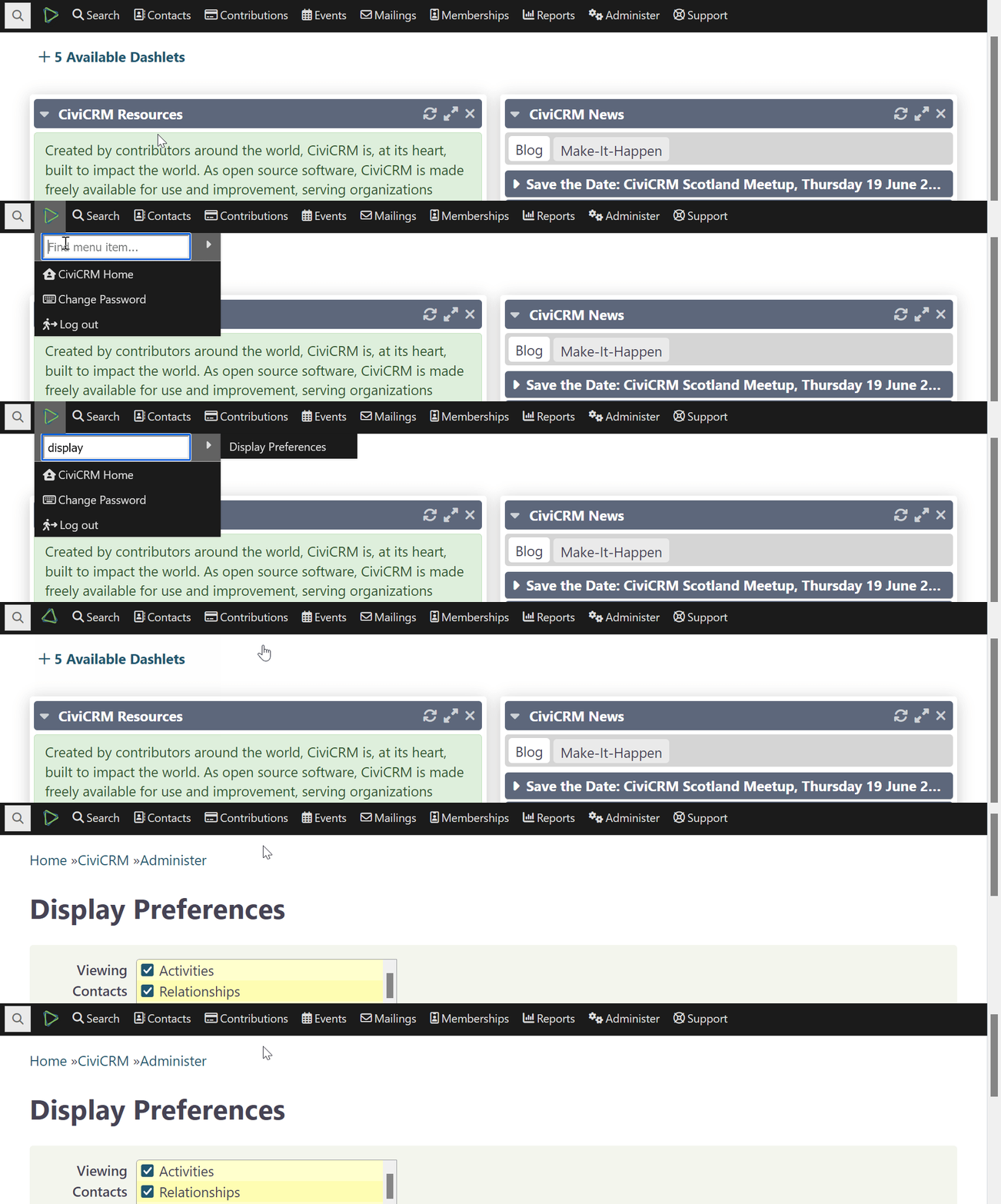
Hover over the CiviCRM logo in the top navigation, next to the quick search bar. A panel appears with a search field and a list of available menu items.
- Click the search field.
- Type part of a menu item name, such as “display preferences” or “groups”. The list filters to matching items.
- Click an item to go directly to its page.
Modifying the menu
To add, disable or rearrange menu items, go to Administer > Customize > Navigation Menu.
Note
Changes to the navigation menu are visible to everyone with the appropriate permissions to see the menu. Be careful when modifying it.