Export membership records
You can export membership records for further analysis, document mail merges, or reports outside CiviCRM. You can export a default set of primary fields or choose fields specific to the membership record.
First, search for the specific membership records you would like to export.
- Click on Memberships > Find Members and enter your search criteria.
- On the "Find Members" search results screen, select the records you want to import. In the -actions- drop down, select Export Members.
- Select Export PRIMARY fields or Select fields for export, then click Continue.
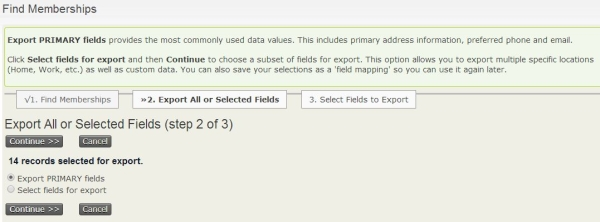
- If you selected Export PRIMARY fields, a file called
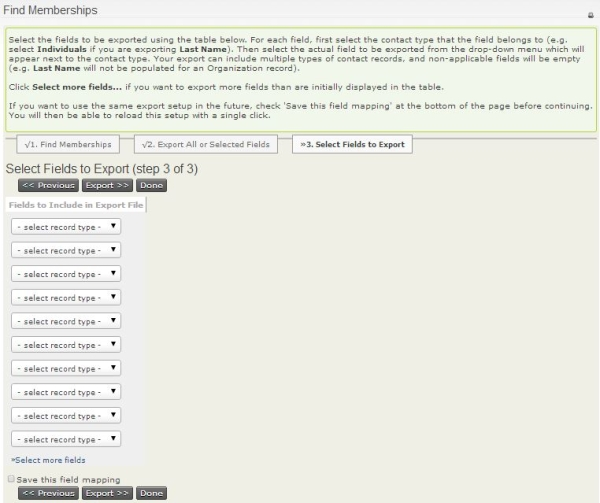
CiviCRM_Member_Search.csvwill be created containing the membership records based on your search criteria. - If you selected Select fields for export, include the fields you would like to export. Check Save this field mapping if you want to re-use this field mapping for a future export, then click Export. A file called
CiviCRM_Member_Search.csvwill be created containing the membership records based on your search criteria and the fields you selected to export.