Views integration
Backdrop Views
Views is a Backdrop module for displaying website content, such as a list of the latest news on a home page. CiviCRM integrates with Backdrop Views so that CiviCRM data can be shown on your website.
For example, to create a public page called ‘Partner Organizations’, you could:
- Select criteria for the Contact data to display:
- Organization contacts only
- Contacts tagged ‘Partner’ in CiviCRM
- Contacts with a membership of status ‘New’ or ‘Current’
- Choose the data to show:
- Organization name
- State/Province
- Website
- Phone number
- Show the data in either table or paragraph format.
- Allow the public to filter the results by State/Province.
Configuration
These instructions assume CiviCRM and Backdrop are in separate databases on the same physical host. If CiviCRM and Backdrop are in the same database, the 12 steps below are not required.
- Before making any changes, it is strongly advised that you make backups of your mysql databases and settings.php file.
- If you have different database users for your CiviCRM and Backdrop databases, grant
SELECTaccess for the Backdrop user to all the CiviCRM tables. - Make sure you are logged into your Backdrop site as the administrator.
- In the CiviCRM admin menu, visit Administer > System Settings > CMS Database Integration (
http://example.org/civicrm/admin/setting/uf?reset=1). - You should see a page with output that begins with
$databases['default']['default']['prefix']= array(. It should look like the following snippet, whereexample_civicrmis replaced with the name of the database that contains CiviCRM. (Note: backticks are no longer included.)
$database_prefix = array(
  'default' => '',
  'civicrm_acl'                              => 'example_civicrm.',
  'civicrm_acl_cache'                        => 'example_civicrm.',
  //...
- Copy this setting output, including the trailing
);. -
Open
/settings.phpfor editing from the root directory of the site, typicallypublic_htmlon most servers.Note
This assumes you have a single site installation. The location of the settings file might be different depending on whether or not you have multiple sites.
-
Go to the bottom of the file and paste in the settings output you copied. If the settings.php file already includes an earlier version of the output, remove the earlier version before pasting the new output.
- Backdrop uses a simplified database string as follows:
$database = 'mysql://user:pass@localhost/database_name';. To allow multiple databases, convert it to this format in thesettings.phpfile as shown below. More on this.
php$databases['default']['default'] = array('driver' => 'mysql','database' => 'database_name','username' => 'user','password' => 'pass','host' => 'localhost',);
-
You may need to indicate the default prefix. If you see an error like the one below:
PDOException: SQLSTATE[42S02]: Base table or view not found: 1146 Table 'kckruppc_every.semaphore' doesn't exist: SELECT ...
Include an additional line,
'default' => '<backdroptableprefix>', in yoursettings.phpjust after$database_prefix = array(. You can find more information on this error in this forum post. -
Save the file settings.php. You might want to clear your site cache at this point.
- You should now be able to create Backdrop Views based on CiviCRM data.
Note
If you add a new set of custom fields to CiviCRM, you will need to re-do these steps again so any new fields in the field set can be accessed by Backdrop Views.
Note
If you are using Custom Data sets in CiviCRM, anytime you add a new data set (not just a field) you must repeat this process.
Creating views using CiviCRM data
Views are located in the Structure section of the Backdrop administrative menu. When you create a View, give it a name and select what kind of data you wish to show.
If your view is focused on Contacts, which most are, select Show: CiviCRM Contacts. To display details about other CiviCRM data, such as events, relationships, contributions or activities, there are additional options that might provide more data fields for those types.
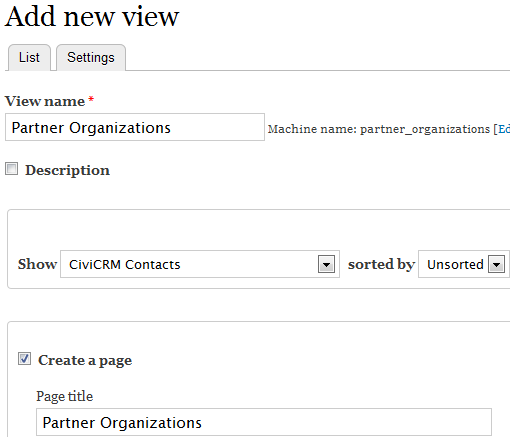
After the View is created, edit the fields, filters, display and other configurations to show the data as you prefer. Views takes some experimentation and/or training to get it right. If you become stuck, ask questions on Stack Exchange or Mattermost, or hire a consultant.
Other things Views and CiviCRM can do
- Lists of upcoming events
- Building reports on contributions, activities or event registrants
- Honor roll listing of recent donors
- Staff, board of directors or committee lists
- A list of current members
- ...and more!