Membership price sets
Membership price sets let contacts:
- Sign up for multiple membership terms at the same time.
- Sign up for more than one membership in a single transaction, such as national and local memberships.
- Select non-membership options, such as information booklets, when they sign up for a membership.
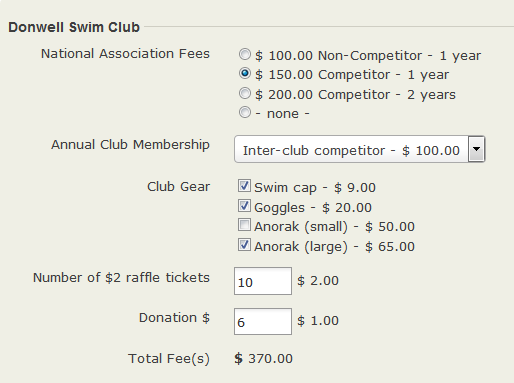
Here is an example of a membership price set offering all these options:
The Donwell Swim Club price set consists of five price fields: National Association Fees, Annual Club membership, Club Gear, raffle tickets and donation.
It offers two membership types:
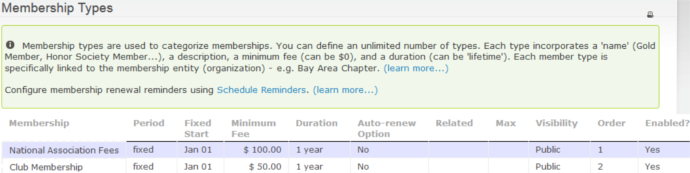
Define these membership types before creating the price set. See Defining Memberships. You must also define all the financial types you will need before creating the price set.
Membership price sets can be used on online join-up or renewal pages, or for new member sign-ups processed manually through the CiviCRM back office system. They cannot be used for renewals processed manually. Each membership must be renewed individually (see the Renewals chapter). You may also need to create a contribution price set for the non-membership items you offer.
You cannot combine memberships that can be auto-renewed with memberships that do not offer auto-renewal or with non-membership items.
Price sets can be configured in many ways. Test a price set thoroughly before using it on your live site to make sure it fits your situation.
Create a price set
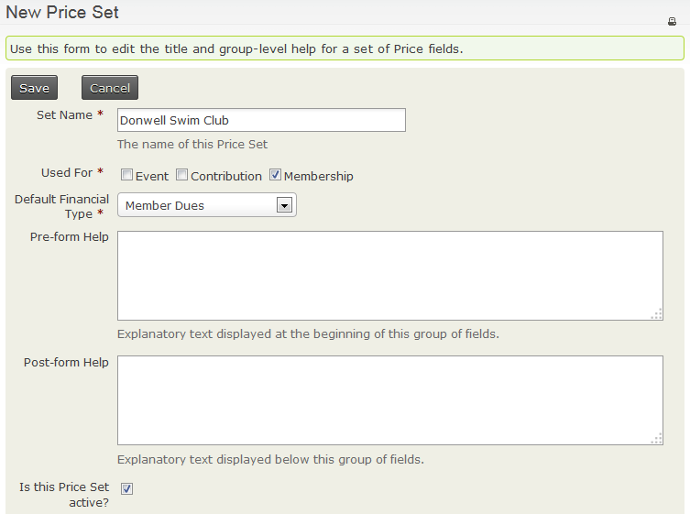
- Navigate to Memberships > New Price Set or Administer > CiviMember > New Price Set.
- Enter the price set name. It appears both to the public as part of the price set and to admin staff choosing between price sets, so make it descriptive for both.
- Tick Membership.
- Set the Default Financial Type. This choice has accounting implications; refer to the Contributions section for more information.
- Add pre- or post-form help text if you want to.
- Make sure the price set is active and Save.
You will be taken to a form to create the first price field for your price set.
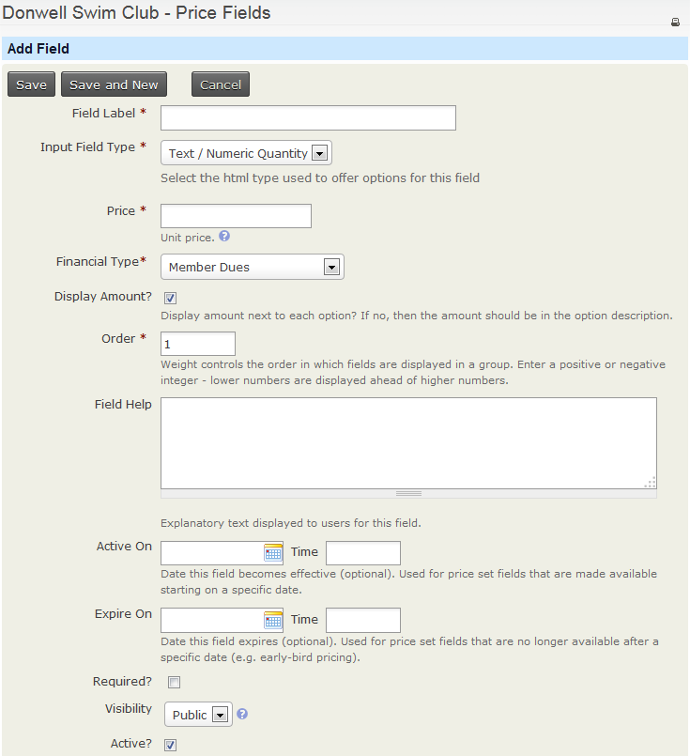
Create a price field
- Enter a name in Field Label. This name appears to the public.
- Select the Input Field Type. Four input types are available:
- Text/Numeric Quantity: Set a unit Price. The price set displays a text box for a quantity; the quantity entered is multiplied by the unit price to calculate the amount.
- Select: Displays a dropdown box from which one option can be selected.
- Radio: Displays options in a list; up to one option can be selected.
- Checkbox: Displays options in a list; multiple selections are allowed.
Each input type is used in an example below.
- Financial Type is set to the Default Financial Type chosen when the price set was created. You can override it if required.
- Display Amount? displays an option’s price next to its label. If the field label includes the option price, you can untick it. Otherwise, leave it ticked.
- Order, Field Help, Required and Active are either self-explanatory or have help on the form.
- Active On and Expire On can make a price field invisible until the Active On date, invisible after the Expire On date, or visible only between those dates. For example you could use these fields to bring in a price rise at 12:00am on 1 January 2019 by setting the price field with the old prices to Expire On 1/12/2019 12:00am and the price field with the new prices to be Active On 1/12/2019 12:00am.
- Set Visibility to Public (visible on your website to those who can see the membership sign-up page) or Admin (visible only through the back end, and only to users with appropriate permissions).
Multiple membership terms
The National Membership price field illustrates how to let contacts sign up for multiple membership terms at the same time using the Radio input field type.
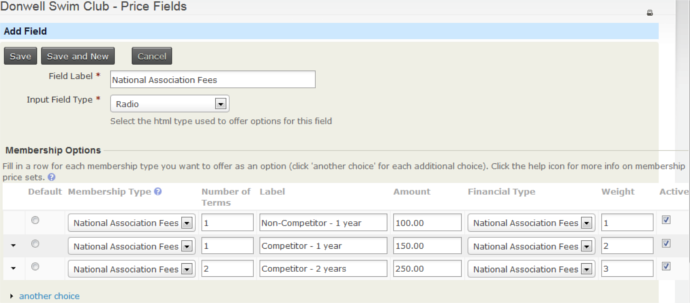
In Membership Type, select an option from the dropdown list of configured membership types. Selecting a membership type fills Number of terms with 1 and fills Label, Amount and Financial Type from that membership type’s definition. You can change all these values.
The National Association Fees membership type has a duration of 1 year and a minimum fee of $100. Setting number of terms to 2 gives 2 years of membership. If you have more than one option, change the Label so each option has a different label. You can increase the Amount to any value, allowing concession and standard fees for the same number of terms.
Because the price of each option is not included in its Label, Display Amount? needs to be ticked.
This configuration reduces the number of membership types you need: this price field needs only a 1 year National Association membership type with a minimum fee of $100, instead of three membership types. Members cannot auto-renew with this type of multi-term configuration.
Membership of more than one organisation
In addition to National Association Fees, contacts must sign up for a membership with the swim club. This field uses the Select input field type.
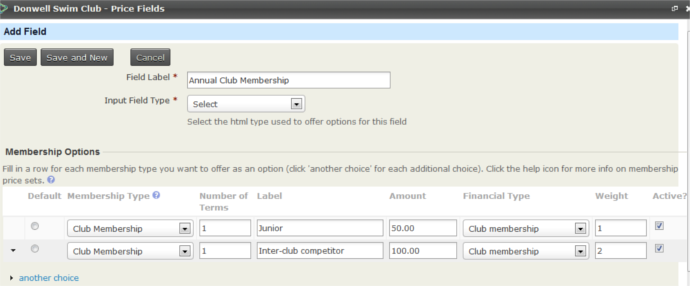
Selecting a membership type from the dropdown list fills Number of terms with 1 and fills Label, Amount and Financial Type from that membership type’s definition. You can change any of these values.
Because the price of each option is not included in its Label, Display Amount? needs to be ticked.
Together, these two price fields let someone sign up for a minimum of 1 and a maximum of 2 memberships. The memberships must be linked to two different organisations: a contact can have only one active membership with a specific organisation. See Defining Memberships for more information.
Non-membership price fields
You can configure price set fields to offer additional services, subscriptions or other non-membership options.
The example has three non-membership price fields. The first offers club-branded swimming gear. The Checkbox field type lets people choose more than one item.
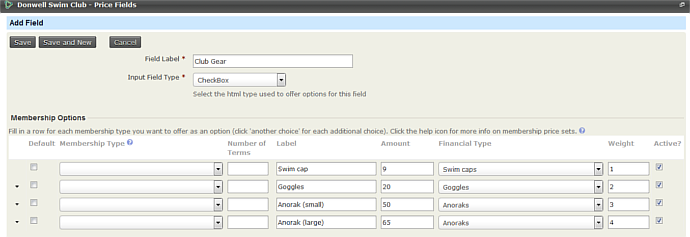
Because these are products rather than memberships, leave Membership Type and Number of Terms empty. Set Label, Amount and Financial Type for each option. Because the price of each option is not included in its Label, Display Amount? needs to be ticked.
The three price fields discussed so far contain the same fields, despite using different input field types. Radio and Select are interchangeable: both allow one option and can be used for membership or non-membership options. Use Checkbox when contacts can choose more than one option from a single price field. It can also be used for either membership or non-membership options.
The fourth input field type, Text/Numeric Quantity, can only be used for non-membership options. Usually, include the unit price in the field label, as in this example, or in the field help. In that case, Display Amount? should not be ticked.
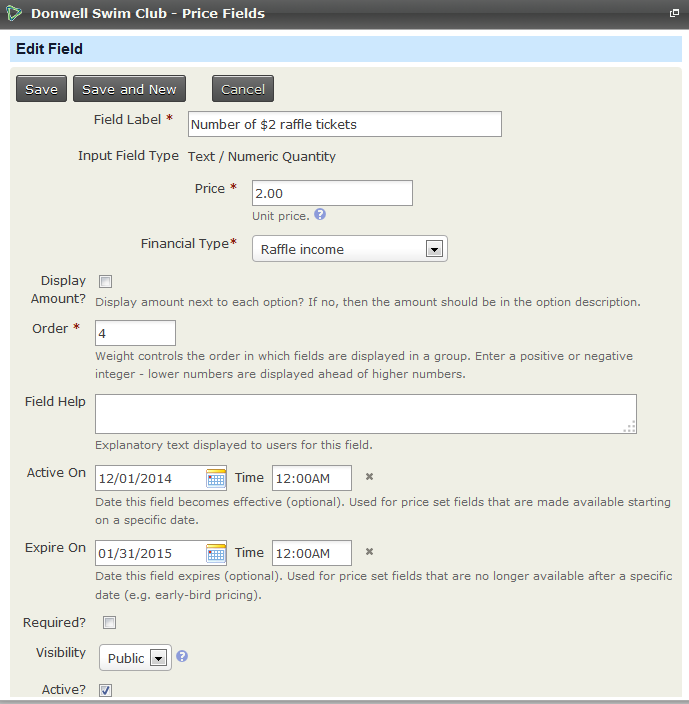
This displays as:
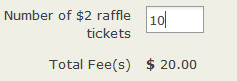
This price field is visible only between the Active On and Expire On dates, so raffle tickets can be purchased only during the selling period authorised by the relevant licensing authority.
The final price field allows people to give a donation. Its unit price is 1. The unit price is not included in the field label, although the currency symbol is, and Display Amount? is not ticked. This is the best configuration for "any amount" donations.
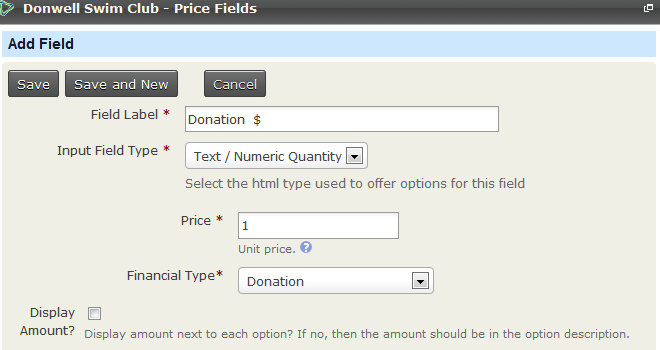
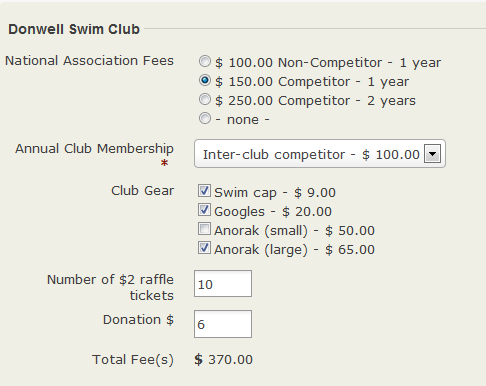
Here is how all the fields look on the final screen: