API keys
Overview
If a third-party application needs to read or write data in CiviCRM, you may need to generate an API key.
Each API key is attached to a specific contact record or user account, which determines the permissions. When configuring a new application, determine the contact ID and double-check their roles or permissions.
Each API key must be unique and difficult to guess. To generate a good API key, use a random sequence of 20+ alphanumeric characters.
Assigning keys
Once you have identified a suitable contact record, you can assign a key through any of the following tools:
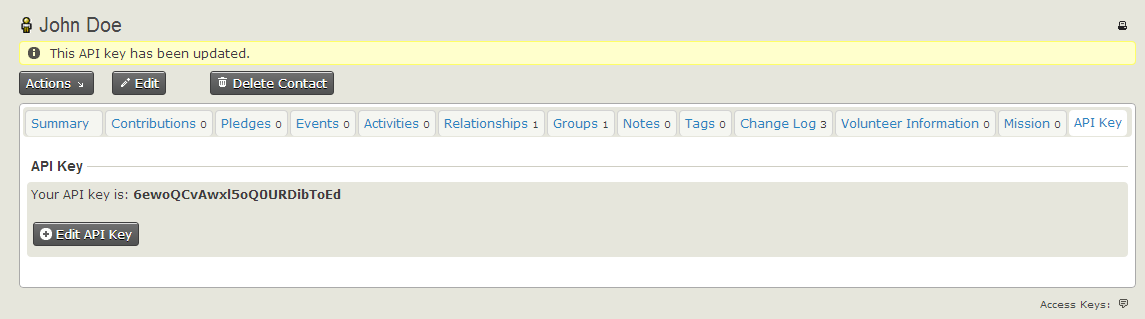
"API Key" Extension
The optional API Key Extension provides a simplified web interface for managing keys.
APIv3 and APIv4 Explorer
The "APIv3 Explorer" and "APIv4 Explorer" provide a built-in way to manipulate CiviCRM data through the administrator interface.
See "Stack Exchange: How do I set up an API key for a user?"
CLI
If you have shell access and cv, you can generate and assign API keys:
-
Generate a random key:
head -c32 /dev/urandom | base64 | tr -d '+/='T0PS3CR3T6ateeUXgTOJ9e3PpXvDZF9Al55WAmBsNQI -
Assign this new value to the contact. In this example, we update contact
#100:cv api contact.create id=100 api_key="T0PS3CR3T6ateeUXgTOJ9e3PpXvDZF9Al55WAmBsNQI"
MySQL
If you have direct access to the MySQL database, you can generate and assign API keys:
-
Generate a random key:
SELECT @api_key := REPLACE(REPLACE(REPLACE( TO_BASE64(RANDOM_BYTES(32)), "+", ""), "/", ""), "=", "") AS api_key;+---------------------------------------------+ | api_key | +---------------------------------------------+ | T0PS3CR3T6ateeUXgTOJ9e3PpXvDZF9Al55WAmBsNQI | +---------------------------------------------+ -
Assign this new value to the contact. In this example, we update contact
#100:UPDATE civicrm_contact SET api_key = @api_key WHERE id = 100;