Renew and update memberships manually
Manually renewing a membership for a single contact
- Go to the contact's summary page.
- Click on the Memberships tab
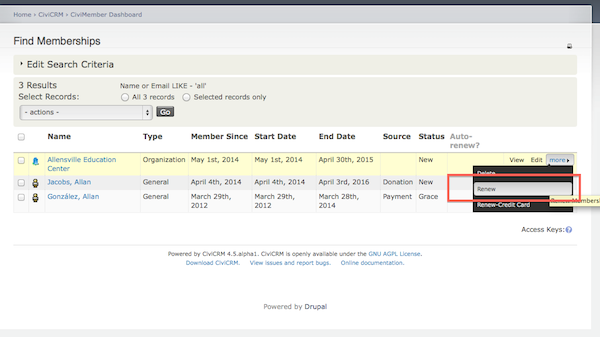
- Click MORE next to the membership record
- Select Renew to enter cash, cheque or EFT payment or Renew-Credit Card to process the renewal through your online payment processor.
Update multiple memberships
You can use the Update multiple memberships feature (previously called Batch Update Members Via Profile) to update multiple existing membership records (don't confuse this with the Batch Data Entry feature that is used for adding new memberships and member payments).
To update multiple memberships, create and configure a Profile that contains fields pertaining to membership information that you want to display and update.
To use the Update multiple memberships feature:
- Find the memberships you would like to update by selecting Memberships > Find Members. Enter your search criteria and click Search.
- From the Find Members results screen, select the membership records and select Update multiple memberships from the -actions- dropdown box and click Go.
- From the Update multiple memberships screen, in Select Profile, select the profile you want to use from the dropdown box and click Continue >>.
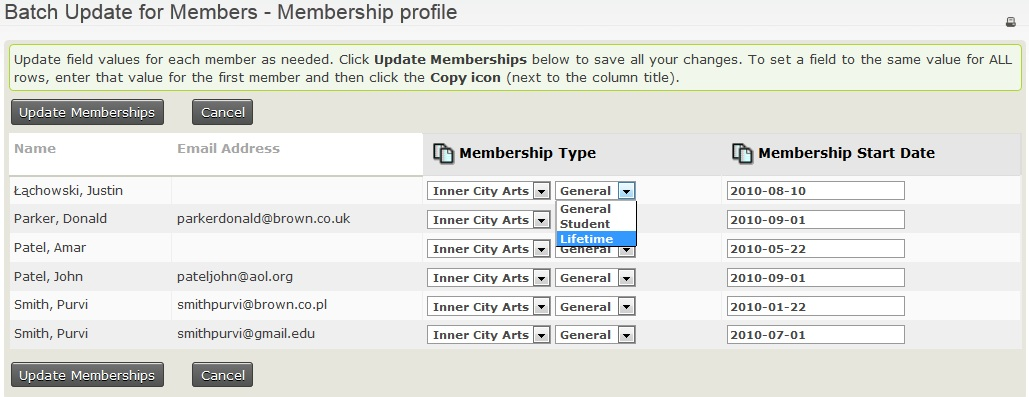
- From the Update multiple memberships screen, you can update the information that is displayed based on the profile you selected. You can use the "auto-copy" icon at the top of a column to copy and paste the value from the field of the first record of that column to the rest of the fields below in the column. Once you are done updating, click Update Memberships.
Below is an example of an Update multiple memberships screen that is using a membership profile configured to display the Membership Type and the Membership Start Date fields for use with Update multiple memberships.