Example: Listing Contacts who have relationships of the same type
You may want a list of contacts who have more than one (or any number) of the same relationship type. For example, a children’s summer camp could find contacts who have more than one child, then turn the results into a mailing list to offer enrollment discounts to multi-child families.
Step 1: Create a new search and set initial criteria
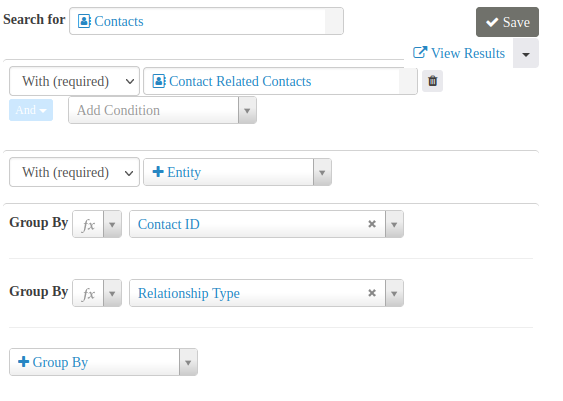
- Go to Administer > Search > SearchKit and click New Search.
- Ensure that the default Contacts is selected as the primary entity to Search for.
- Select With (required) and Contact Related Contacts on a new entity.
- Click the +Group By button and group by both Contact ID and Relationship Type.
Step 2: Add the Relationship column to the search
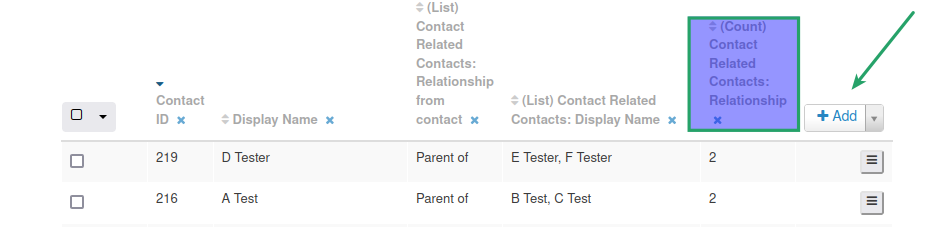
- Below the criteria, click +Add and select Contact Related Contacts: Relationship.
- Though not necessary, you may also add the Contact Related Contacts: Relationship from contact column to indicate the relationship type, especially if your search includes more than one type of relationship.
Step 3: Transform the Relationship column
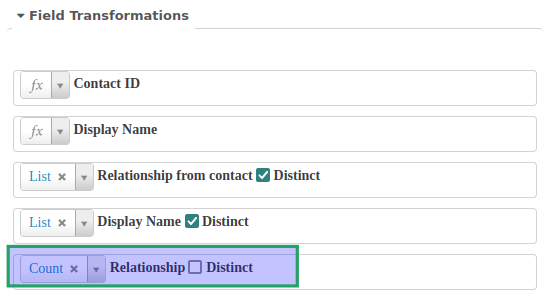
- Click Field Transformations just below the Having drop down list.
- Select Count as the transformation for Relationship.
Step 4: Add a Having clause
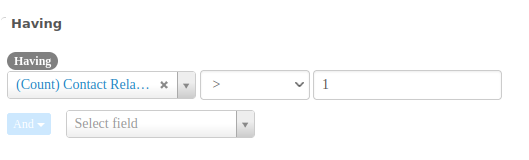
- Under Having, select (Count) Contact Related Contact: Relationship from the Select field drop down list.
- For this scenario, select the greater than symbol (>) and enter 1 in the field to its right.
- Click Search to view your results. Name and save your search as well.