Everyday survey tasks
Manage your surveys
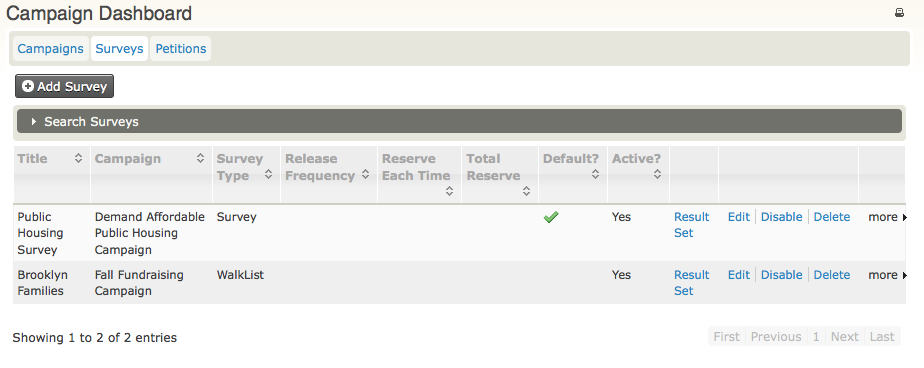
To view and edit existing surveys, go to Campaign > Dashboard > Surveys. This page shows a summary of your surveys.
Use the links at the right to manage existing surveys, or click Add Survey to create a new survey.
Reserve respondents
Before conducting a survey, determine whom you want to interview. In CiviCRM, this is called reserving respondents. You can divide the reserved group into smaller subsets to make the number of interviews more manageable within available time periods.
To learn how to create a group, see Groups and Tags.
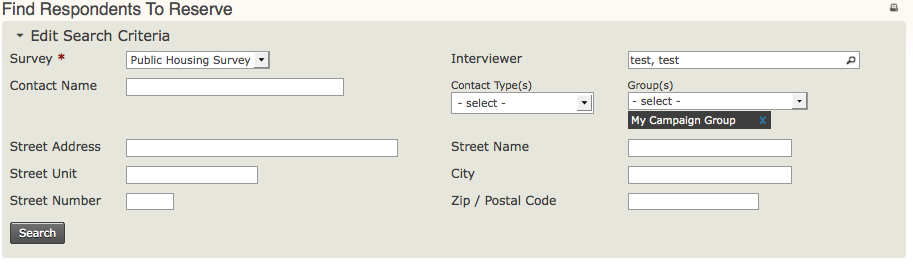
- Go to Campaigns > Reserve Respondents.
- From the Survey dropdown menu, select the name of the survey (required).
- From the Group(s) dropdown menu, select the name of the group of contacts to be interviewed.
-
You can enter additional criteria to limit your search to a geographic area, such as Street Address, Street Name, Street Unit, Street Number, City, or Zip/Postal Code.
Note
CiviCRM will parse a street address into Street Name, Street Unit, Street Number - which is extremely useful if you're planning a large door-to-door canvass - only if you turn on address parsing by clicking on Administer > Administration Console> Configuration Checklist > Address Settings, then in the Address Editing area, check the box for Street Address Parsing.)
-
Click Search.
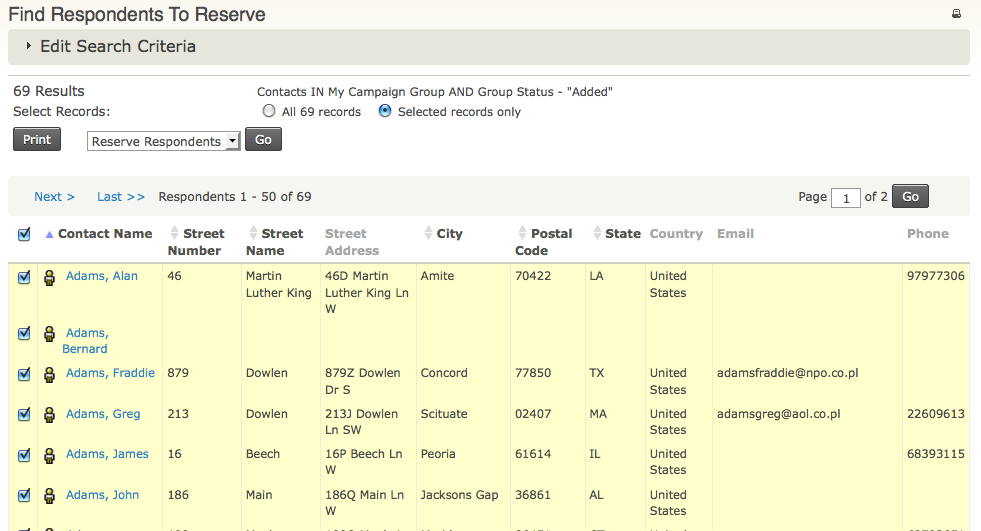
On the Find Respondents to Reserve search results screen:
- Select the individual contacts to be interviewed, or select all contacts by clicking the radio button for All n records (where n is the number of contacts found in the reserve respondents search).
- Click Go to reserve the respondents.
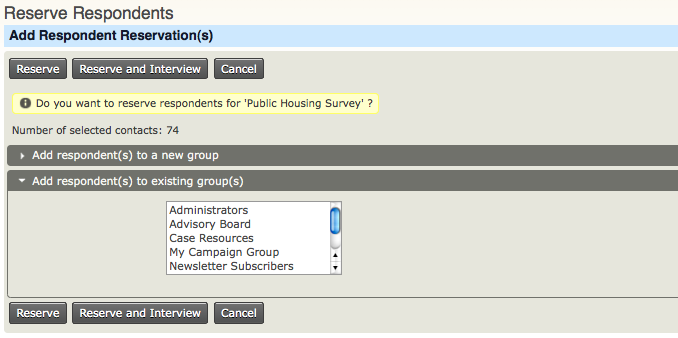
On the Reserve Respondents screen, click Reserve.
Interview respondents
- Click Campaign > Interview Respondents.
- On the Find Respondents to Interview screen, use the same criteria as for Reserve Respondents:
- Survey: (required) select the name of the survey.
- Group(s): select the name of the group of contacts to be interviewed.
- Click Search.
- On the search results screen, select the individuals for whom you want to record responses, or select All n records (where n is the number of contacts found in the reserve respondents search).
- Click Go to record survey responses.
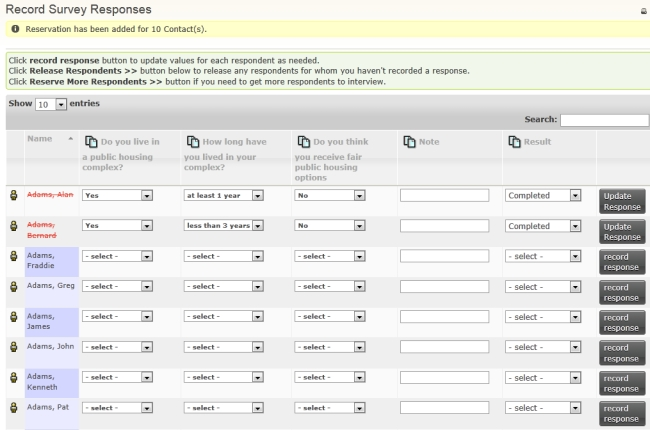
- On the Record Survey Responses screen, record each individual's responses to the questions.
- In the Result column, select the status of responses to the survey, such as 'Completed, No Answer'.
- Click Record Response, then choose one of the following:
- Click Done if you have finished recording responses and want to return to the Find Respondents to Interview screen.
- Click Release Respondents if you decide not to record responses for the contacts. On the Release Respondents screen, click Release Respondents so they will no longer be reserved and another volunteer can reserve them for interviews.
- Click Reserve More Respondents to find more contacts to interview.
Review survey results
At the end of the canvass, a program lead may want to review the survey results. See Reports and Analysis to learn how to view the report.